
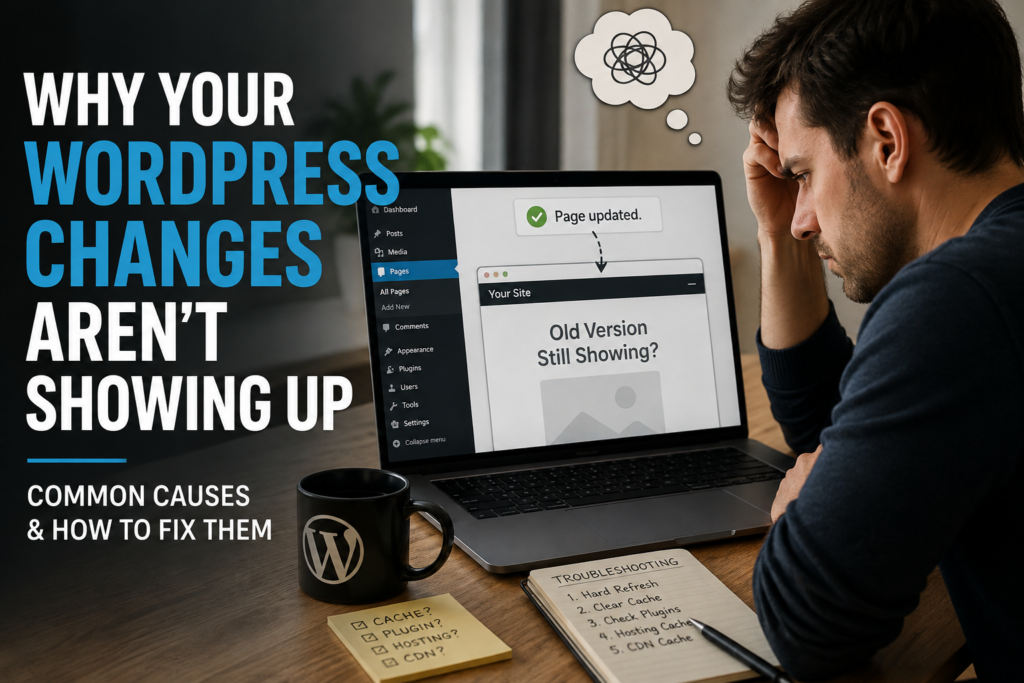
You make a change to your WordPress website, click Update, refresh the page…and nothing happens.
The old image is still there. The CSS looks unchanged. The menu still shows the previous version. Maybe the page builder says everything saved successfully, but visitors are still seeing the old page.
This is one of the most common WordPress frustrations, and fortunately, it usually does not mean your changes were lost.
Start With the Cache
Caching is designed to make websites faster by storing previously generated versions of pages and files. Instead of rebuilding a page every time someone visits, the server, browser, CDN, or WordPress plugin may deliver a saved copy.
That speed improvement is useful—until you are trying to update something.
There can actually be several layers of caching involved:
- Your web browser
- A WordPress caching plugin
- Your hosting provider
- A CDN such as Cloudflare
- Your page builder
- Server-level caching
Clearing only one layer may not be enough.
Try a Hard Refresh
Before changing anything else, force your browser to request a fresh version of the page.
On Windows, try:
Ctrl + F5
You can also open the page in a private or incognito browser window.
If the new version appears there, browser caching was probably responsible.
Clear Your WordPress Cache
If you use a caching or optimization plugin, find its clear-cache or purge-cache option.
After clearing the cache, reload the affected page.
Be careful about changing optimization settings simply because something is cached. Usually, purging the existing cache is enough.
Check Your Hosting Cache
Many modern WordPress hosts use server-side caching whether or not you installed a caching plugin.
Check your hosting dashboard for options such as:
- Clear Cache
- Purge Cache
- Flush Cache
Server-level caching can sometimes continue displaying an older page even after WordPress itself has been updated.
Clear Your CDN
If your website uses a content delivery network, static files such as images, stylesheets, and JavaScript may be stored outside your primary web server.
Purge the CDN cache and test the page again.
Make Sure You Edited the Correct Page
This sounds simple, but it happens surprisingly often.
WordPress websites can contain:
- Pages
- Posts
- Templates
- Header templates
- Footer templates
- Archive templates
- Reusable blocks
- Global styles
- Page-builder templates
You may be editing a page while the visible portion of the website is actually controlled by a template.
Before spending hours troubleshooting, confirm exactly where the content is coming from.
CSS Changes Can Be Especially Stubborn
Stylesheets are commonly cached.
If HTML content updates but design changes do not, CSS caching may be responsible.
Developers sometimes use version numbers on stylesheets so browsers recognize them as new files after changes are made.
Don’t Keep Rebuilding the Page
When a change does not appear, repeatedly rebuilding the same content can create more problems.
Use a systematic process instead:
- Confirm the page saved.
- Hard refresh.
- Test incognito.
- Clear WordPress caching.
- Clear hosting caching.
- Purge the CDN.
- Confirm you’re editing the correct template.
- Inspect the page for CSS or JavaScript issues.
WordPress troubleshooting becomes much easier when you eliminate possibilities one at a time.
The goal isn’t simply to make the change appear—it’s to understand why it didn’t appear in the first place.